
This guide will help you navigate the process of enabling users to re-submit forms within Blackbaud, ensuring a smooth experience for both students and parents.
1. Log in to Your admin Blackbaud Account:
- Use your credentials to log in to your Blackbaud account.
2. Navigate to the Relevant Section:
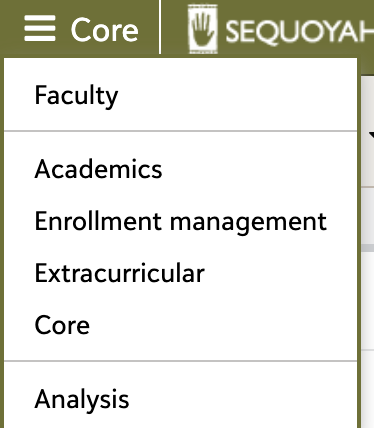
- Depending on the form, it may be located within Core, Academics, Enrollment Management, or Extracurricular.
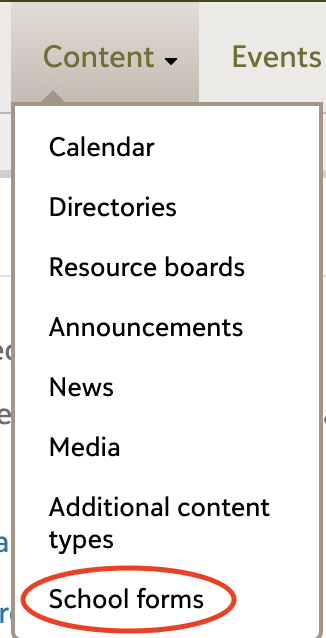
3. Access the "School Forms" Tab:
- This can be found in the tabs Content > School Forms
4. Locate the Form:
- If you know the name of the form, you can use the search function in the Filters tab. Otherwise, you can manually locate it within the list.
5. Access Submission Information:
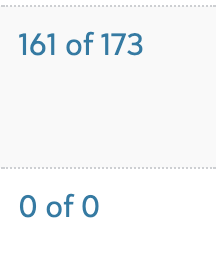
- Click on the blue numbers under the Submission tab. This will typically display as "0 of 0" or "123 of 150" or "# of #"
6. Find the User's Name:
- Search for the student or parent's name within the submission information.
7. Enable Resubmission:
- Once you've located the user's name, click on "Allow Resubmit" in the right column.
8. Confirm Resubmission Availability:
- The user should now be able to see the form ready for resubmission within their profile.

Conclusion:
By following these straightforward steps, you can easily enable users to resubmit forms within Blackbaud, facilitating a seamless process for all involved parties.
Note:
If you encounter any difficulties or have questions about specific forms, don't hesitate to reach out to Blackbaud's support team for assistance.